Browse all guides
Upgrade, downgrade, or cancel your plan
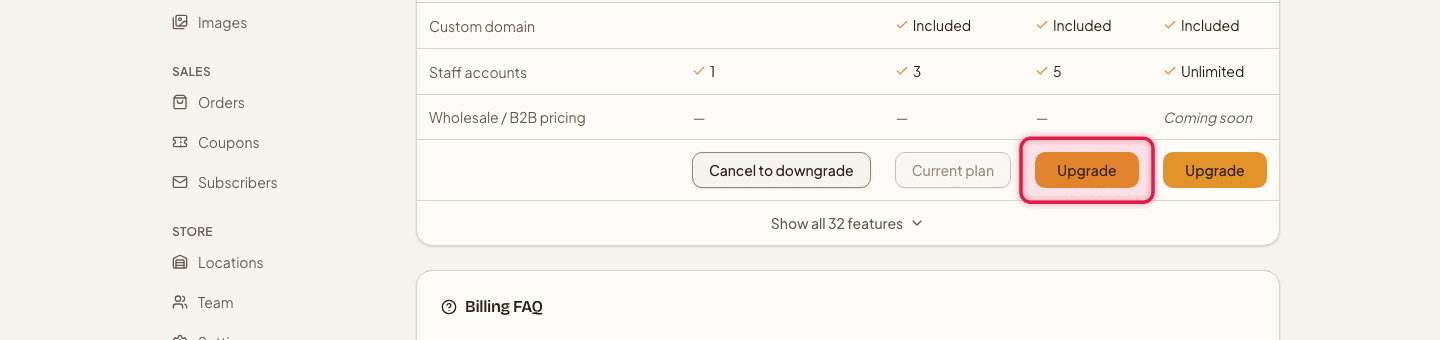
Change your plan from the Billing page — upgrades go through checkout, downgrades and cancellations go through the billing portal.
- 1
Open Billing
Go to Billing to see your current plan and usage.

- 2
Upgrade
Click Change plan / Upgrade and pick a new plan — this opens secure checkout. If you already have an active subscription, it's updated in place with proration instead of billing you twice.
- 3
Downgrade or cancel
Click Manage billing to open your billing portal, where you can downgrade, cancel, or update your payment method.

- 4
View invoices
Past invoices and receipts are also in your billing portal.
Downgrading shows a banner listing exactly what you're about to lose — for example, products over the new plan's limit, or an SEO override in use. An already-connected payment gateway or custom domain keeps working after a downgrade; only connecting a new one requires the higher plan again.
Still stuck?
Contact us and we'll help you sort it out.