Browse all guides
Add store widgets: WhatsApp button, promo tab and popup
Turn on the three floating widgets from the store editor — a WhatsApp chat button, a promo or feedback tab, and an announcement popup — and set exactly what each one says.
The floating elements on your storefront — the WhatsApp chat bubble, the announcement popup and the promo tab — are all set from the store editor, under Store style → Buttons. They're independent, so turn on any combination you want.
- 1
Open Store style → Buttons
From your admin dashboard, click Edit store, then switch the sidebar from Page blocks to Store style and pick the Buttons tab (beside Look and Templates). If you're already in the editor, it's the same two clicks.

- 2
Turn on the WhatsApp button
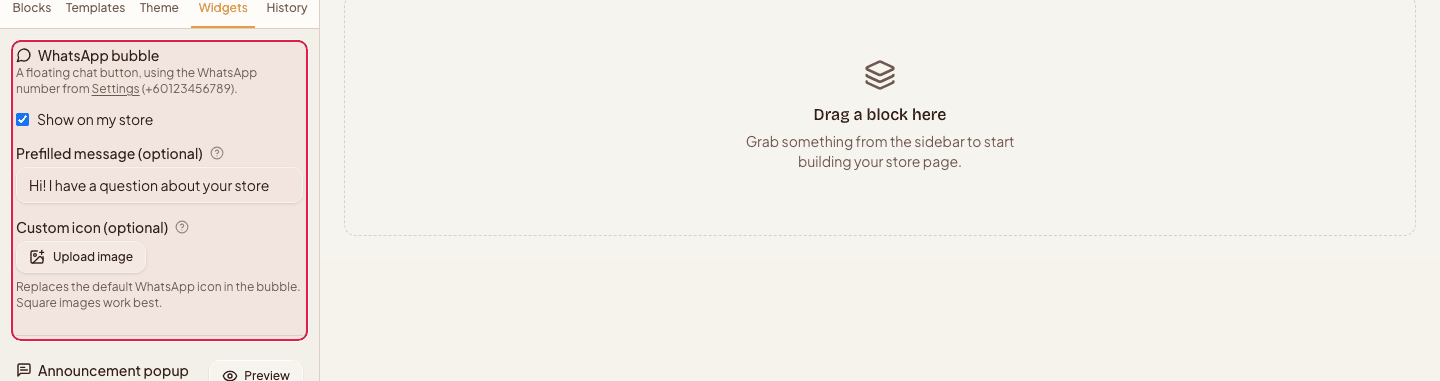
Show on my store switches on a floating chat button. It uses the WhatsApp number from your settings, so there's no second number to keep in sync. Add a prefilled message so the conversation opens with the customer's question already written for them, and upload a custom icon if you'd rather use your own artwork than the default WhatsApp logo.
- 3
Add an announcement popup
The popup shows over the page the first time someone opens your store — good for a launch promo or a coupon code. Add an image, a heading and body text, an optional promo code pill, and a button that links to a page on your own store. Choose how often it comes back: every visit, once per browser session, or once per day.

- 4
Add a promo or feedback tab
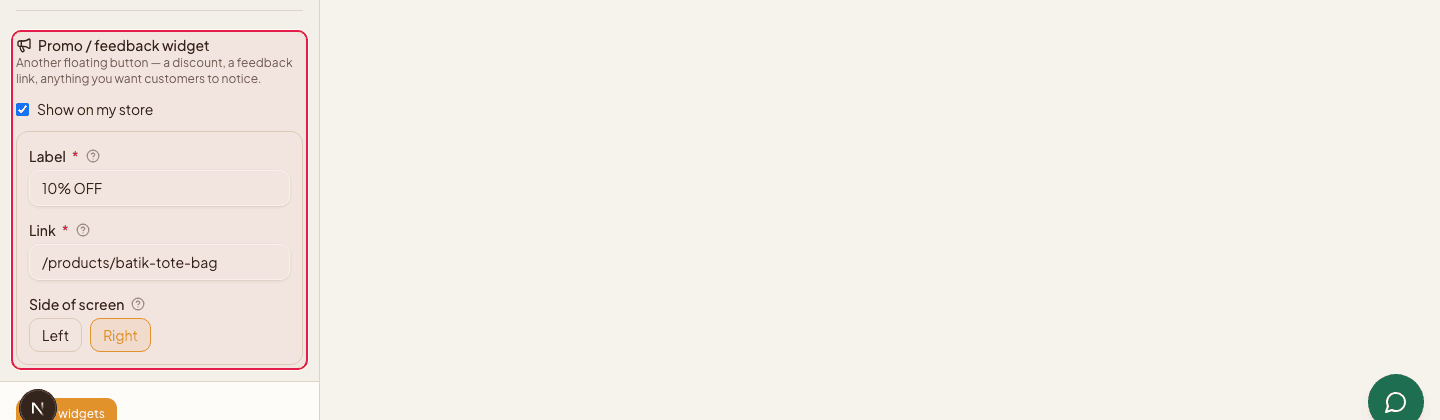
The third widget is a slim tab pinned to the edge of the screen — a discount, a feedback link, anything you want customers to notice. Give it a short label and a link, then pick which side of the screen it sits on.
- 5
Save, then check it on a phone
Click Save widgets. The preview behind the panel follows what you type, but nothing reaches your storefront until you save — the same rule as Save theme on the Look tab next door. Reload your store afterwards, on a phone as well as a desktop: floating buttons take up more of a small screen.

The WhatsApp bubble has no number field of its own — it uses the WhatsApp number from your store settings. If that's empty, the panel tells you it's not set yet, and the button has nothing to open.
Leaving the panel without pressing Save widgets discards that change — the same trap as the theme beside it, where the canvas previews your picks but only Save theme keeps them.
Still stuck?
Contact us and we'll help you sort it out.