Browse all guides
Track inventory across multiple locations
Add pickup or warehouse locations, then track each product variant's stock separately at each one.
Locations aren't customer-facing addresses — they're just named stock pools. Your customer-facing pickup address is set separately, in Settings → Checkout & delivery.
- 1
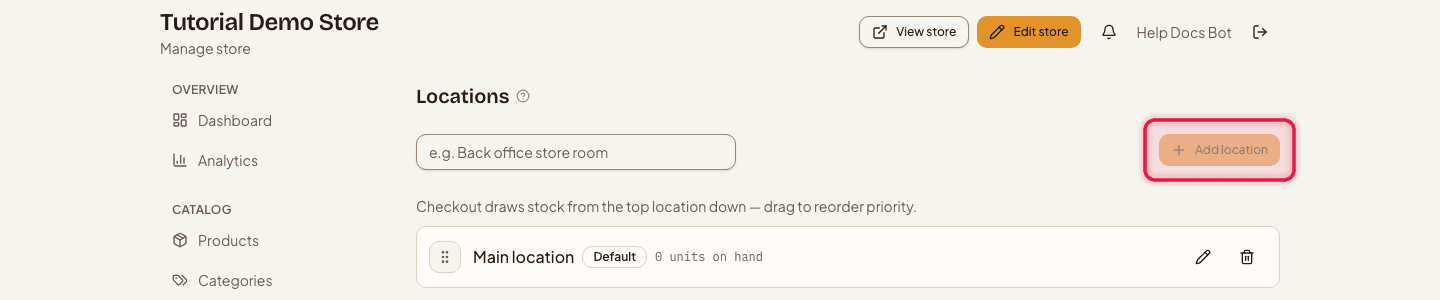
Add a location
Go to Locations → New location and give it a Name.
- 2
Set the default
One location is always the default — the first one you create becomes it automatically, and you can reassign it later. The default location can't be deleted while it's the only one.

- 3
Reorder priority
Drag locations up or down to set the order checkout draws stock from.

- 4
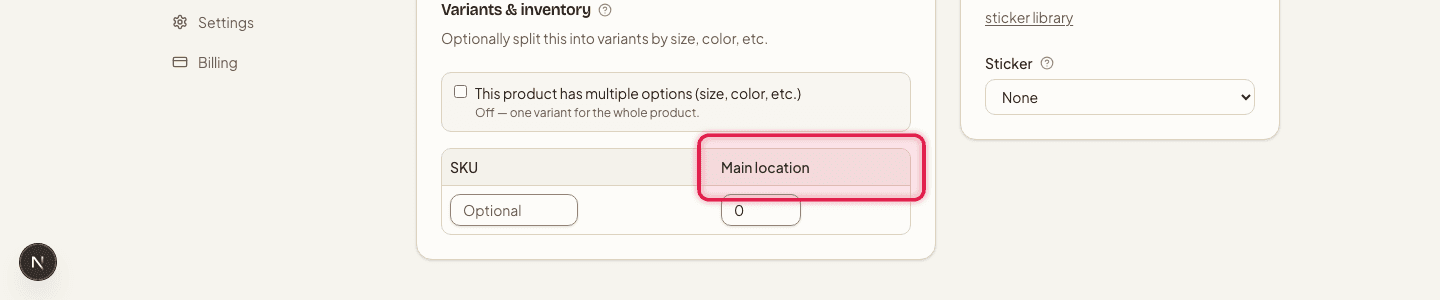
Set stock per location
On a product's variant, enter the stock count for each location — checkout deducts from the highest-priority location that still has stock.
Multi-location inventory is included on every plan, from Free up to Pro.
Still stuck?
Contact us and we'll help you sort it out.