Browse all guides
Customize your store's look: colors, fonts, and layout
Change your store's colors, fonts, corner roundness, header and product cards from the live store editor — every pick previews on the canvas at once, and Save theme keeps it.
Your store's look and feel is set from the storefront itself, not a separate settings page. The editor sidebar has two doors: Page blocks edits what is on this page, and Store style reaches the whole store — the theme, the floating buttons and the template all live behind Store style. Picks show up on the canvas behind the sidebar the moment you make them, but nothing is kept until you press Save theme; homepage blocks work the other way round (saved to a draft, then published).
- 1
Open the store editor
Click Edit store — in the black bar across the top of your store, or at the foot of the admin sidebar. This opens your storefront with an editing sidebar down the left side.

- 2
Open Store style → Look
Switch the sidebar from Page blocks to Store style, then stay on Look (the other two tabs are Buttons and Templates). A note across the top says everything here applies to your whole store — every page, every block — which is the difference from the Page blocks side.

- 3
Set your colors
Pick a Primary color and, optionally, an Accent color. Choose a background preset — Paper, White, Cream, Stone, Mint, or Sand — or set a custom background.

- 4
Choose your fonts
Pick a heading font and a body font from the curated list.

- 5
Adjust the layout
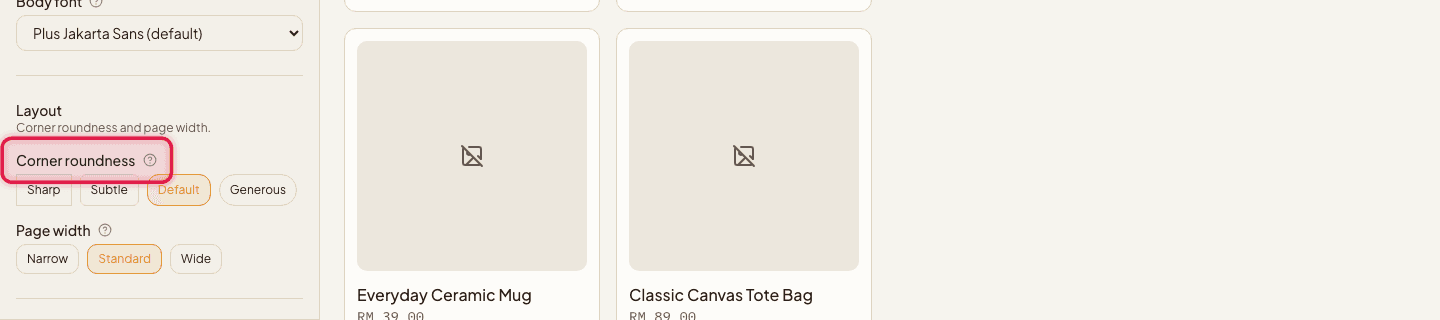
Set the corner roundness (Sharp, Subtle, Default, or Generous), page width (Narrow, Standard, or Wide), and header behavior (Static, Sticky, Fixed, or Smart, which hides the header as you scroll down and brings it back when you scroll up). Two more sections below those: Header layout — store name on the left, or centred with the menu on its own row — and Product cards, which decides how every product looks in every list on your store (Card, Minimal, or Centred).
- 6
Add your logo
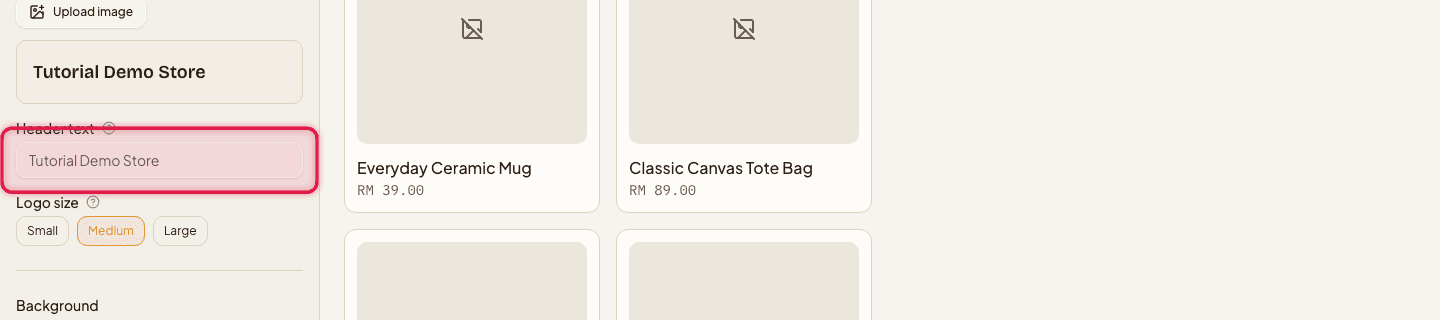
Choose whether the header shows your logo or your store name, then upload a logo image and set its size (Small, Medium, or Large). Header text color and a header-only font sit in the same section, for when the store name is the thing in the header.
- 7
Press Save theme
The canvas has been showing your picks the whole time, but they are only kept once you press Save theme at the foot of the panel. Reset (beside it) puts every setting back to the platform default, and a tick appears next to Save theme once a save goes through.

Pick your colors and fonts with the canvas in view rather than guessing: the sidebar sits beside the real storefront, so a colour that looks wrong is obvious before you save it.
Theme picks are previewed instantly but saved only on Save theme. Leave the panel without saving and the store keeps the theme it had — the one place in the editor where a change looks applied but is not.
Still stuck?
Contact us and we'll help you sort it out.