Browse all guides
Write your own pages and arrange the store menu
Publish About us and policy pages from ready-made templates, then decide which links sit in your header and footer.
Two admin pages work together: Pages is what you write, Navigation is which of it shoppers see and where. Malaysian online sellers are expected to show who they are, how returns work and how personal data is handled — the templates cover that, and the menu is what makes those pages findable instead of buried.
- 1
Open Pages
Under Store in the admin sidebar. You get every page you have with its address, whether it is published or a draft, and when it was last updated.
- 2
Start from a template
About us, Shipping policy, Refund & returns, Privacy policy, Terms of service and Contact us are pre-written for Malaysian stores, with [brackets] marking every detail you have to put in yourself. Replace all of them before publishing: the editor says these are a starting point, not legal advice, and that is accurate.

- 3
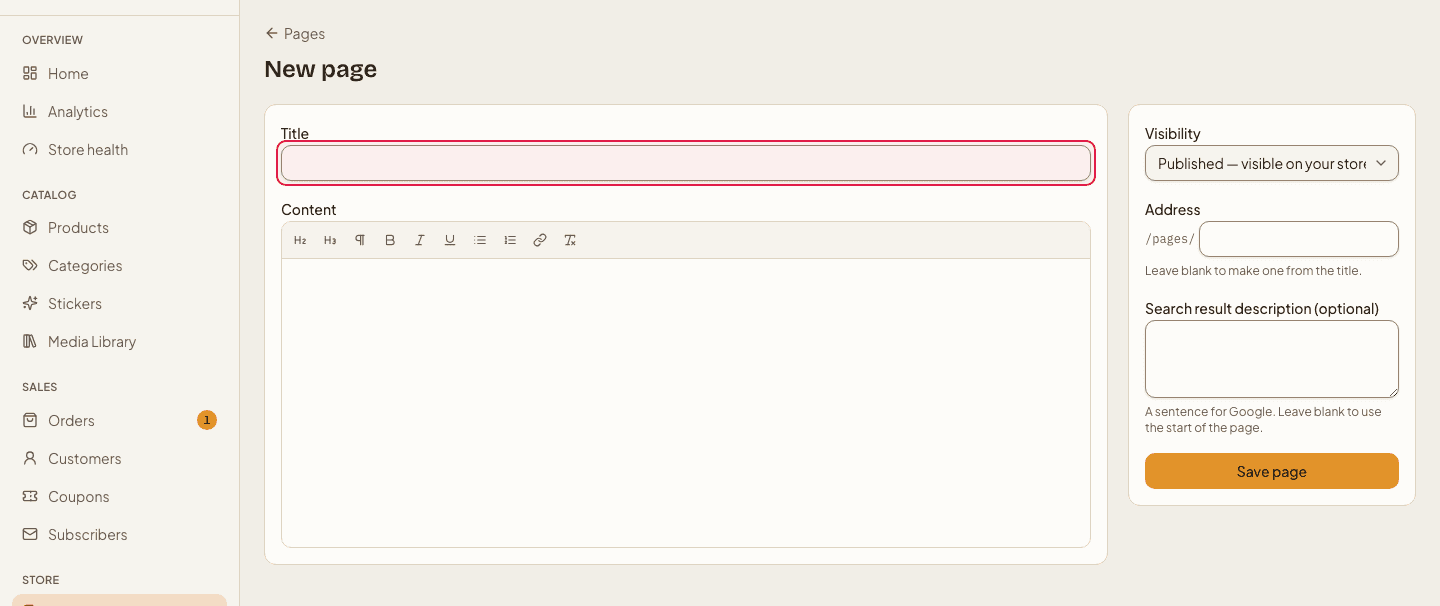
Edit, and set the address
A page has a Title, Content, Visibility (Published — visible on your store — or Draft, which only you can see), an Address, and an optional search-result description for Google. Leave the address blank and one is made from the title; lowercase letters, numbers and dashes only. View on store opens the live page so you can read it as a customer would.
- 4
Arrange the menu
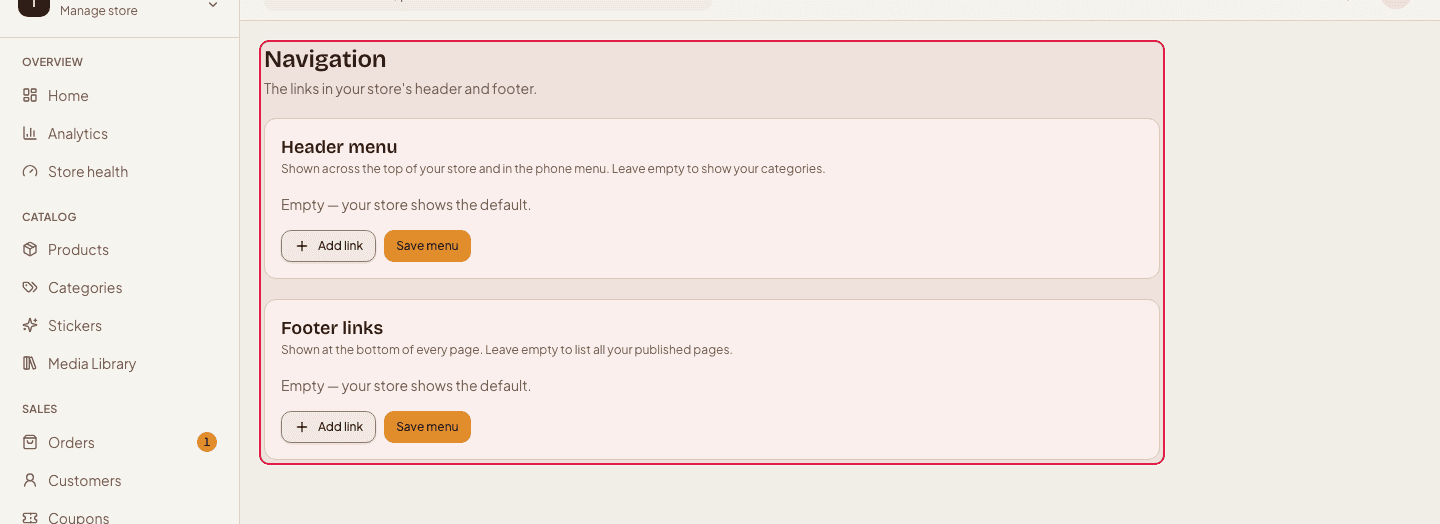
Navigation holds two lists: Header menu, shown across the top of the store and inside the phone menu, and Footer links, shown at the bottom of every page. Add link, choose what it points at — Home, All products, Search, one of your pages, a category, or a web address of your own — then Move up and Move down to set the order. A multilingual store gives each menu label a field per language.
- 5
Leave a menu empty and it fills itself
An empty header shows your categories; an empty footer lists every page you have published. That is why writing the policy pages first and leaving the footer alone is a perfectly good way to start — and why a menu is only worth editing once its links say something your default list does not.
Put your policies in the footer, not the header. The header is for shopping — Home, All products, your categories — while the footer is where a cautious buyer goes looking for the refund policy before paying.
Deleting a page breaks every menu link pointing at it, and the confirmation says so. Draft pages are never listed, so a half-written policy cannot leak onto the storefront.
Still stuck?
Contact us and we'll help you sort it out.