Browse all guides
Delete your store
A store owner can permanently delete a store from Settings → Danger zone — here's exactly what happens and when.
Only the store's Owner sees this option. Your storefront goes offline immediately once you start the process, regardless of which timing you choose.
- 1
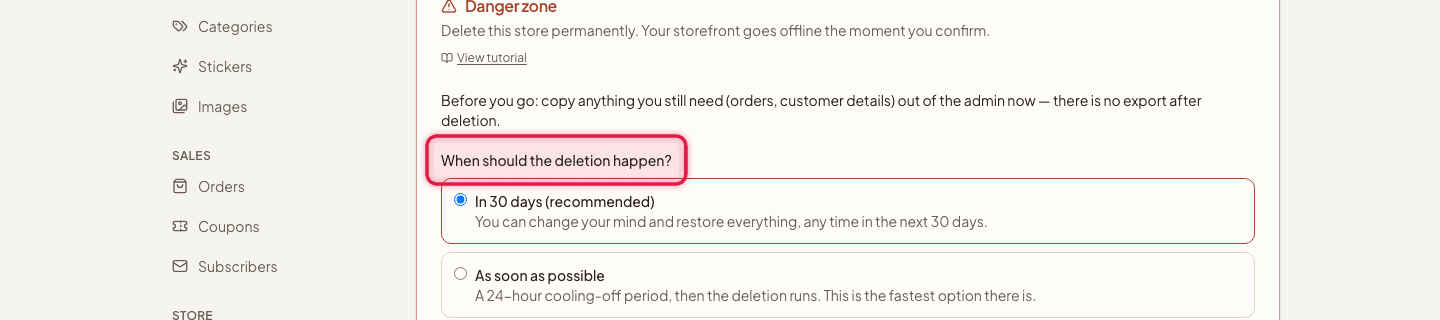
Choose when it happens
Pick In 30 days (recommended) — undoable any time in that window — or As soon as possible, which still waits out a 24-hour cooling-off period so an owner has time to catch and undo a deletion triggered from a stolen session.
- 2
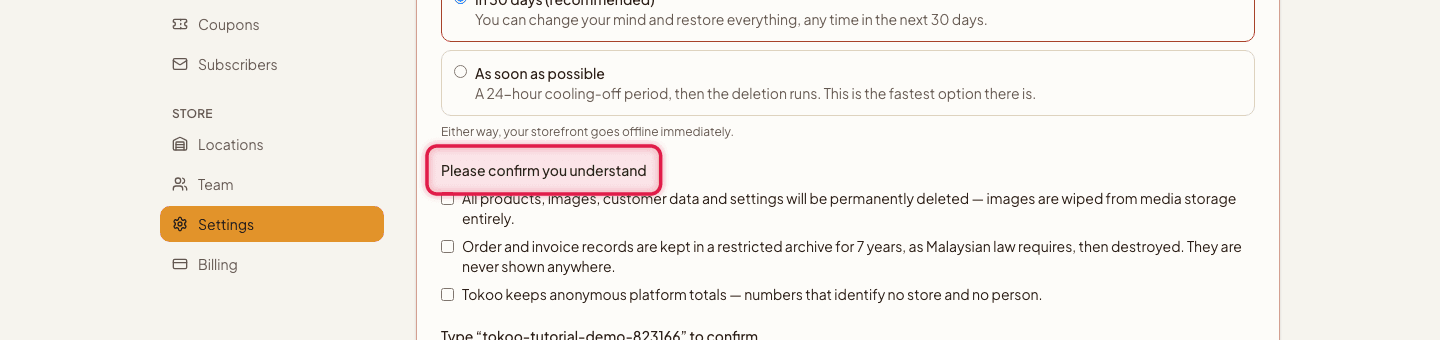
Acknowledge what's lost
Check the three boxes confirming you understand: your data (including images) is permanently gone; order and invoice records are kept in a restricted 7-year archive as required by Malaysian law, then destroyed — never shown anywhere again; Tokoo keeps only anonymous platform totals afterward.
- 3
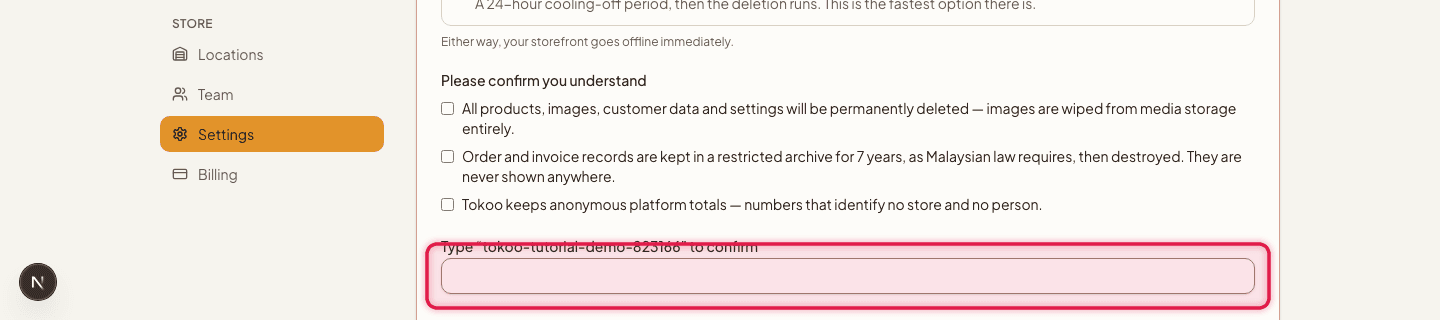
Confirm
Type your store's slug to confirm, then enter your password (skipped if you signed up with Google or Facebook).
- 4
Delete
Click Delete this store.

Orders still in Confirmed or Shipped status block deletion — complete or cancel them first. Pending confirmation orders don't block deletion, since stores commonly have stale unconfirmed manual-payment orders.
This is available on every plan — deleting your store and data anytime, with no lock-in, isn't a paid feature.
Still stuck?
Contact us and we'll help you sort it out.