Browse all guides
Add homepage blocks: banners, carousels, and more
Build your homepage from 20 block types — click one to add it, configure each one, then publish when you're ready.
Homepage blocks are edited in the same store editor as your theme, but they work differently: every change is saved as a draft first, and customers only see it after you publish.
- 1
Open the store editor
Click Edit store — in the black bar across the top of your store, or at the foot of the admin sidebar. The sidebar opens on Page blocks — the door that edits what is on this page, as opposed to Store style, which reaches the whole store. If the panel is hidden, Show panel brings it back.

- 2
Add a block
Under Add a block in the Page blocks sidebar, click a block to add it — it goes right below the block you have selected, or at the bottom of the page. The palette is grouped, and each heading folds: Hero & Banners (Banner, Carousel, Countdown timer) · Products (Highlighted products, Product grid, Product catalogue, Category showcase) · Content (Text, Image + Text, Feature list) · Social Proof (Testimonials, FAQ accordion) · Media (Video, Gallery) · Marketing (Promo bar, Call to action, Newsletter signup) · Local Business (Menu, Map & location) · Layout (Section container, to group other blocks on a background).

- 3
Configure it
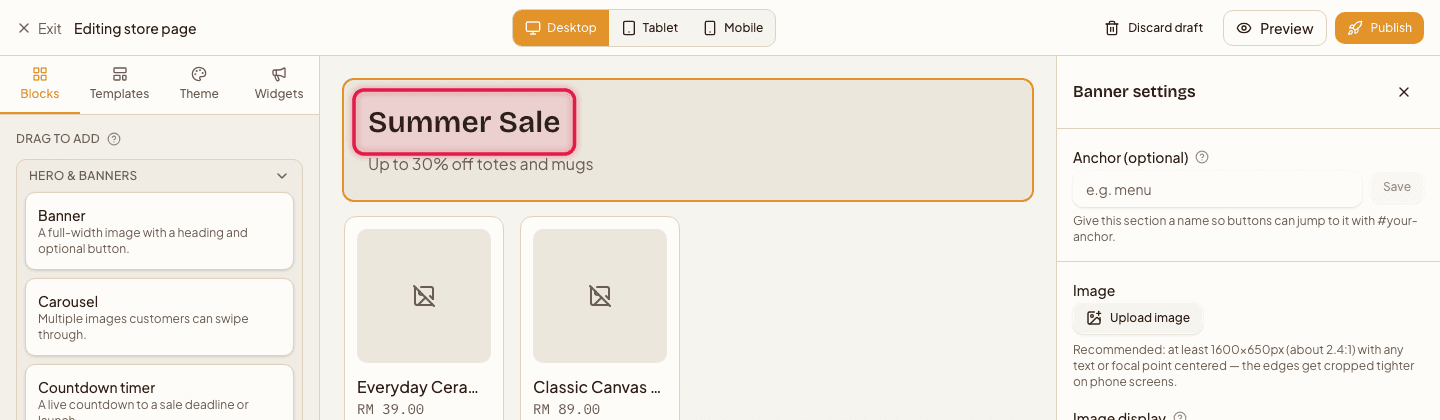
Click the block to open its settings in the right-hand panel — most blocks let you set images, text, links, and colors.
- 4
Reorder blocks
Drag blocks up or down on the canvas to change their order.

- 5
Preview on other devices
Use the device switcher at the top to check how the homepage looks on desktop, tablet, and mobile.

- 6
Publish
Click Publish in the top bar to make your changes live, or Discard to drop them and start over.

A Section container block can hold other blocks, but only one level deep — you can't nest a container inside another container.
Every edit you make is a draft until you click Publish. If you leave the editor without publishing, customers still see your last published version.
Still stuck?
Contact us and we'll help you sort it out.