Browse all guides
Manage orders and fulfillment
Track every order from pending confirmation through to completed, and add tracking numbers for shipped orders.
Orders move through a simple pipeline: Pending confirmation → Confirmed → Shipped → Completed, or Cancelled at any point. A shipped order completes itself automatically after 7 days if the customer never confirms receipt.
- 1
Open an order
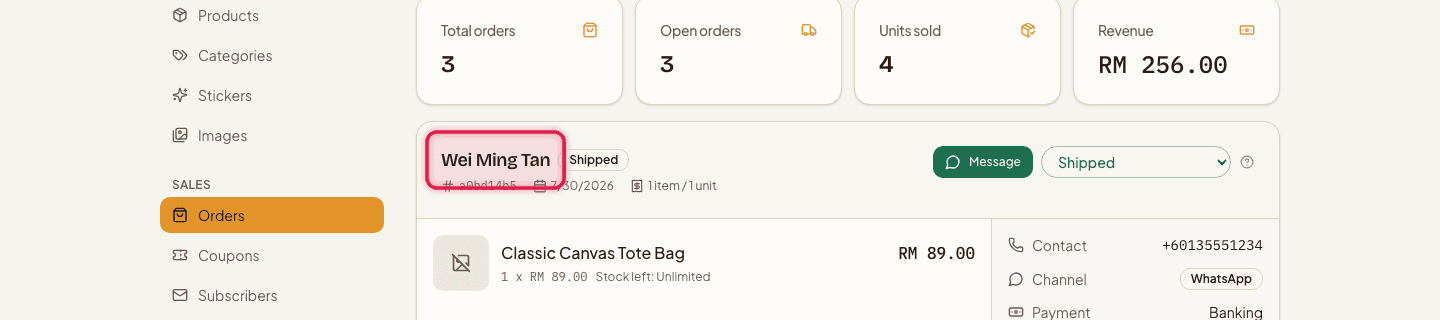
Go to Orders to see every order with its customer, items, contact details, and a Channel badge showing whether it was paid online or with a manual method you confirm yourself.
- 2
Message the customer
Click Message to open a WhatsApp chat with the customer directly.

- 3
Update the status
Use the status dropdown on the order to move it forward — for example from Confirmed to Shipped.

- 4
Add tracking
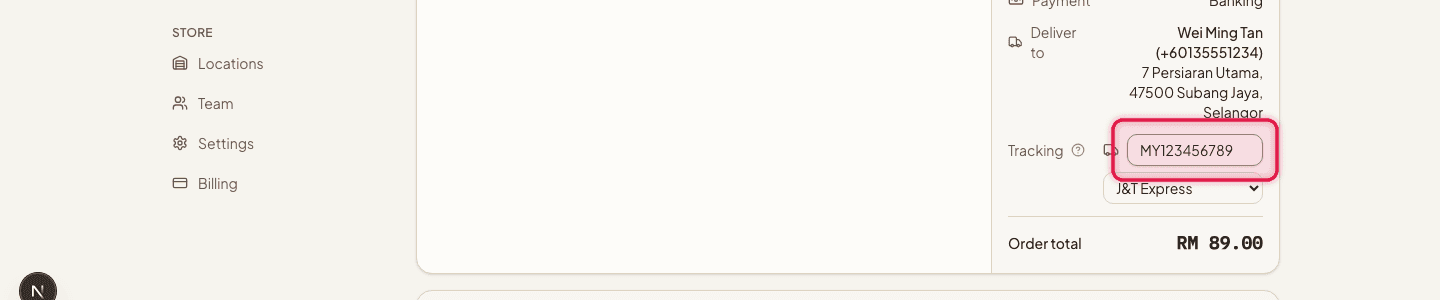
For a shipped order, enter the Tracking number and pick the courier from the dropdown — this builds a Track Package link for the customer.
Manual payment methods (bank transfer, DuitNow QR, cash on delivery) are free on every plan — those orders land here as Pending confirmation with the Manual channel badge, alongside online-payment orders.
Still stuck?
Contact us and we'll help you sort it out.