Browse all guides
Set your store's SEO and social sharing
Fill in the search title, meta description, share image and favicon so your store looks right in Google results, when a link is pasted into WhatsApp, and in the browser tab.
Everything a search engine or a chat app shows about your store — the headline, the sentence underneath, the preview image, the little tab icon — comes from one panel. Leaving a field empty isn't fatal: each one falls back to your store name or logo, which is fine but generic.
- 1
Open Settings → SEO & domain
The same tab holds your custom domain, because both answer the same question: how customers find you.

- 2
Write the search listing
The search title is the headline Google shows for your store — keep your store name in it and add what you sell in the words a customer would type. The meta description is the sentence below it, so say what you sell and where you ship, in about 150 characters.
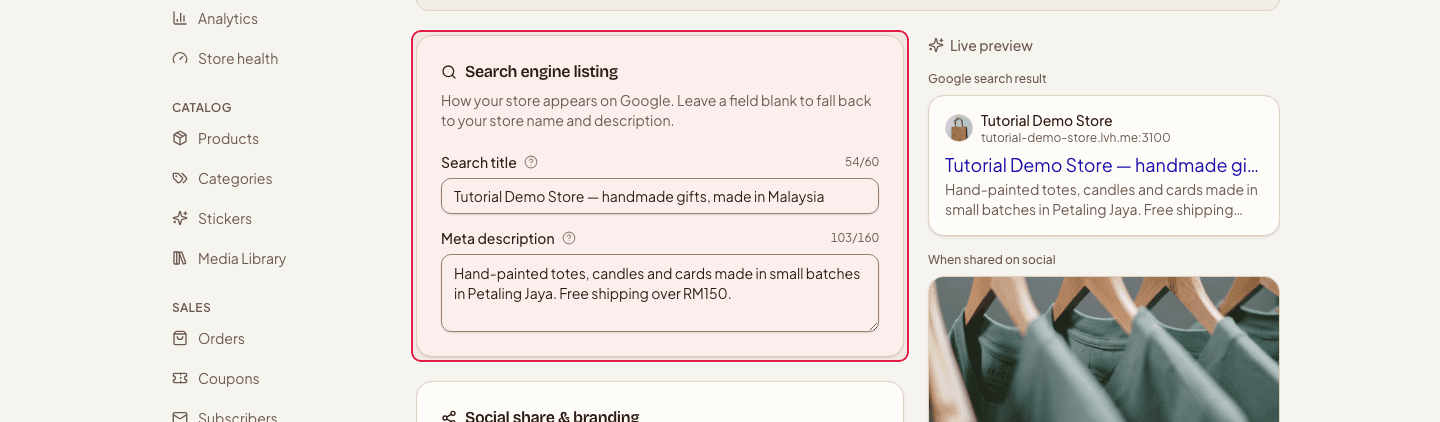
- 3
Set the share image and favicon
The social share image is the card that appears when someone pastes your link into WhatsApp, Facebook or X — 1200×630 works best. The favicon is the small icon in the browser tab and next to your result in Google. Both default to your logo when left empty.
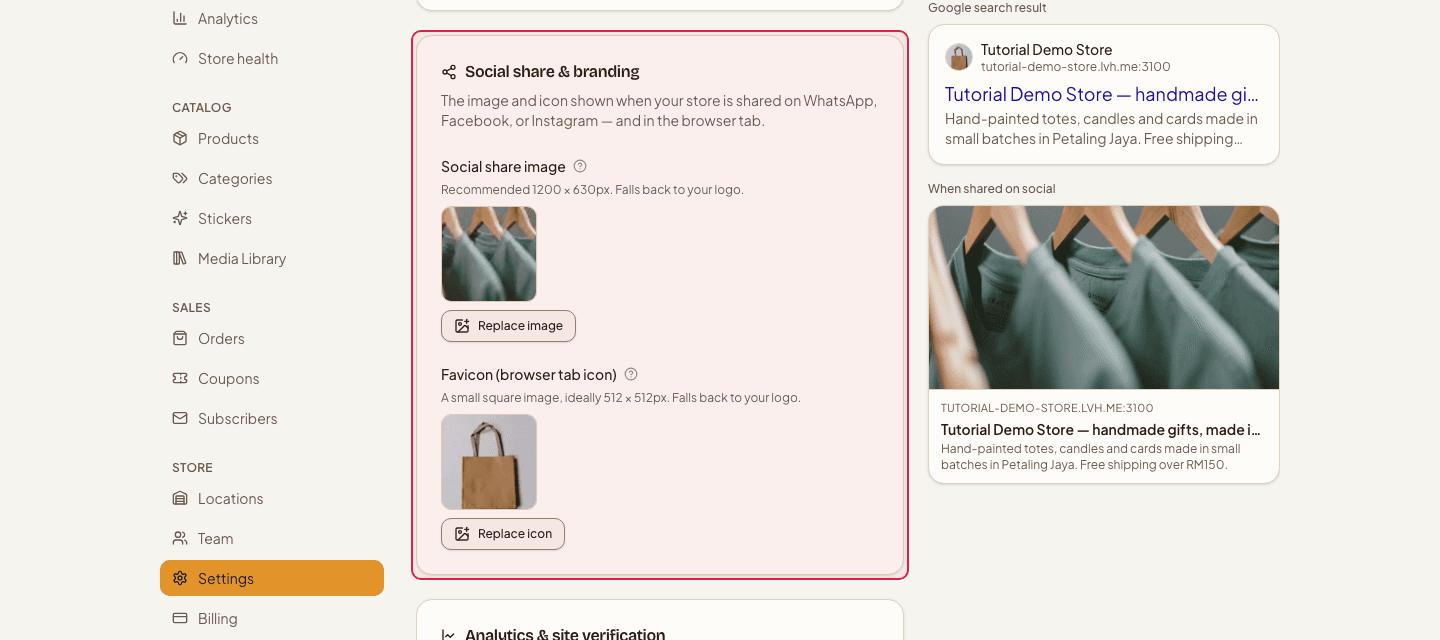
- 4
Add analytics and Search Console (optional)
Paste a Google Analytics measurement ID to track visits under your own property, and the verification code from Google Search Console if you want to see which searches bring people in. Leave both blank to switch them off — nothing else in your store depends on them.
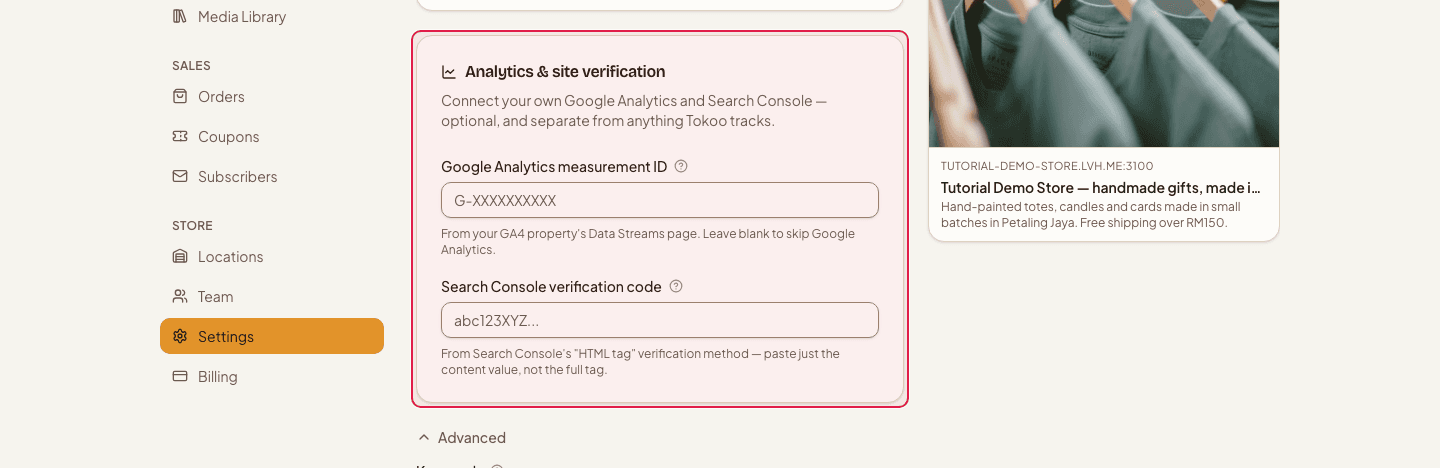
- 5
Save and check the preview
Click Save SEO settings. The panel shows a live preview of your result and your share card as you type, so you can see the change before you save it. On the live site it's immediate — but Google still has to recrawl your page before the new listing appears.

Keep your store name out of the meta description if it's already in the title — that space is better spent on what you sell and who you deliver to.
Keywords sit behind the Advanced toggle. Search engines largely ignore them today, so fill them in only if you already have a list you want on record.
Still stuck?
Contact us and we'll help you sort it out.