Browse all guides
Customer reviews: collect, answer and show them
Let customers review what they bought, reply or hide reviews, and add screenshots of praise from WhatsApp.
Once an order is Completed, the customer can rate each item from their account and write a few words, with up to 3 photos. Reviews are marked as verified purchases and show on the product page, on your Reviews page for customers, and in the Reviews block on your homepage. Three days after an order completes we also email the customer to ask how it went.
- 1
Open Reviews
Click Reviews in the left menu. The top shows how many reviews your store shows and the average rating.

- 2
Turn reviews on or off
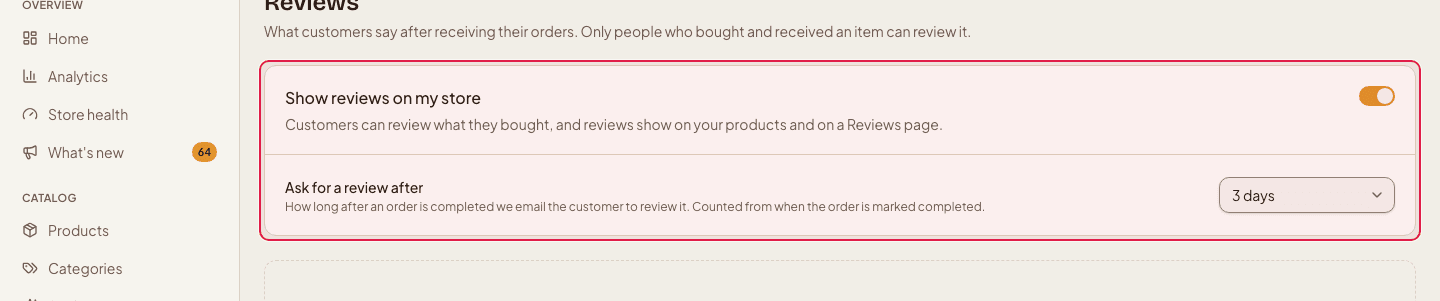
Use “Show reviews on my store” at the top. When it is on, customers can review and reviews display; when off, nothing shows (existing reviews are kept).
- 3
Choose when to ask
“Ask for a review after” sets the delay of the invitation email (for example 3 days). It counts from the moment you mark the order Completed.

- 4
Reply to a review or hide it
Under each review use Reply to answer publicly (Edit reply to change it), or Hide to take it off your store. You can hide or reply but never edit what the customer wrote — that is what makes reviews believable. Reviews also appear on the order itself, and a new review sends a notification to the bell at the top.
- 5
Add feedback from other channels
At the bottom, “Feedback from other channels” lets you upload screenshots of praise you received on WhatsApp. They show in a separate “Shared by the shop” strip, apart from verified reviews, and do not count towards your rating.
Reply to low ratings quickly and politely — shoppers read how you handle problems. You can see the review on the order page, which makes it easy to check what was bought.
Still stuck?
Contact us and we'll help you sort it out.