Browse all guides
Give a free gift with purchase
Set up “buy this, pick a free gift”: choose what the shopper must buy, the minimum, and which products can be the gift. Includes gift-only products that never show in your shop.
A free-gift offer rewards a purchase: “buy any kettle, pick a free pouch”, or “spend RM100 on candles, get a card”. Shoppers choose their gift themselves in the cart and at checkout, the gift costs them nothing, and it appears on the order marked as a free gift. Free gifts are part of Starter and Pro (a Starter trial includes them).
- 1
Open Promotions → Free gift
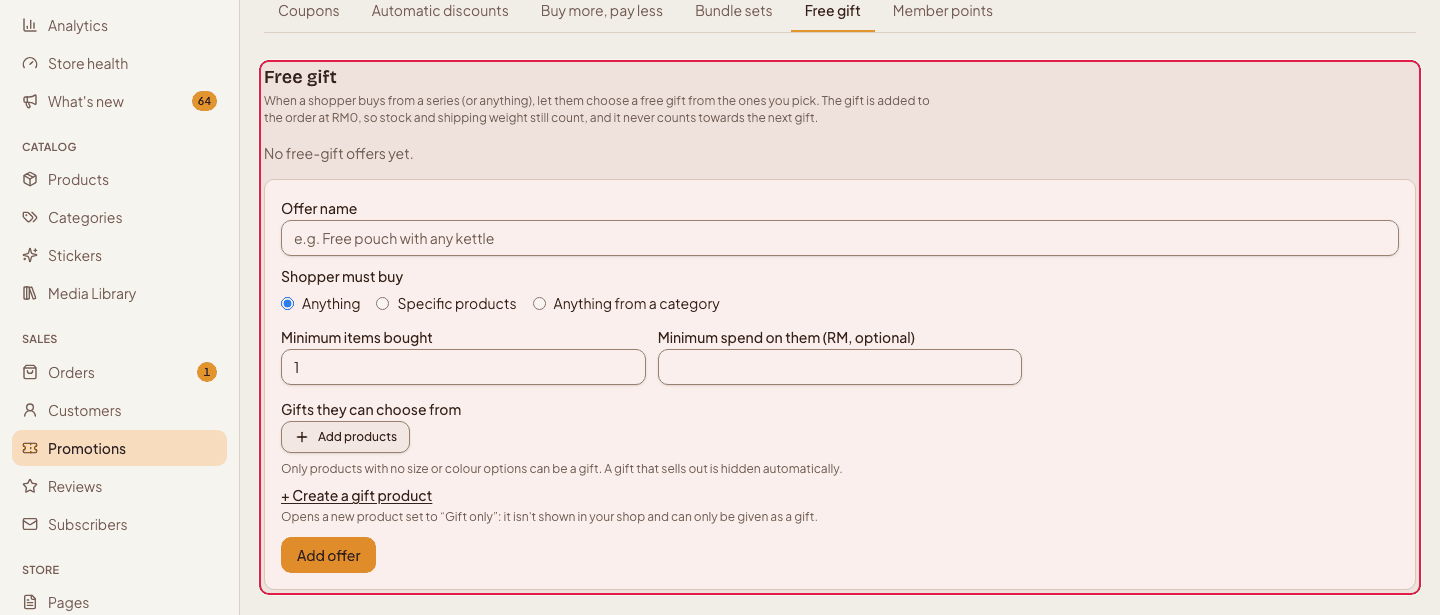
Go to Promotions and click the Free gift tab. You will see your existing gift offers and a form to make a new one. On the Free plan the form is replaced by a note about upgrading.
- 2
Name the offer
Type an Offer name only you see, for example “Buy a kettle, get a pouch”.

- 3
Choose what the shopper has to buy
Under “Shopper must buy” pick one of three: Anything (any purchase counts), Specific products (you choose them in the picker window), or Anything from a category (subcategories count too).
- 4
Set the minimum
Enter Minimum items bought, and optionally a “Minimum spend on them” in RM. Leave the spend empty to go by quantity only.

- 5
Choose the gifts
Click Add products under “Gifts they can choose from”. A gift can be an ordinary product, or a product made only to be given away. A gift must be one exact option, so for a product with sizes or colours tick the specific options — you can tick several, and the shopper picks one. Press Add offer.

Gift-only products: to make something you give away but never sell, open Products → New product and set its status to “Gift only” (or use the + Create gift product link in the gift form). It is hidden from your shop and search, and can only be handed out through a gift offer.
How it behaves
- In the cart
- When the cart qualifies, a gift chooser appears with the gift options. If the shopper has not chosen, checkout asks them to. If they remove items so the cart no longer qualifies, the gift goes away.
- Stock
- The gift's stock is checked and taken when the order is placed, like any product. A gift that is out of stock is simply not offered.
- On the order
- The gift line is priced at RM0.00 and marked as a free gift, so reports and packing lists show what to include.
- Editing
- Use Edit on a gift row (on the Free gift tab, or on the product's own Free gifts tab) to change the minimums or swap the gifts. What the shopper has to buy stays as it was; create a new offer to change that.
From a product's own page you can set “buy this product, get a gift” on its Free gifts tab without opening Promotions. If the product is itself handed out as a gift somewhere, the tab tells you which offers use it.
If your store drops from Starter to Free, gift offers stop applying to new carts but are kept, so they work again as soon as you are back on Starter.
Still stuck?
Contact us and we'll help you sort it out.