Browse all guides
Charge SST and give customers receipts and invoices
Turn on SST if you are registered, set your registration details, and print or save a receipt or an invoice for any order.
If your business is registered for SST, Tokoo can add the tax at checkout and show it on receipts and invoices. If you are not registered, leave it off: customers see no tax at all.
- 1
Open Settings → Checkout
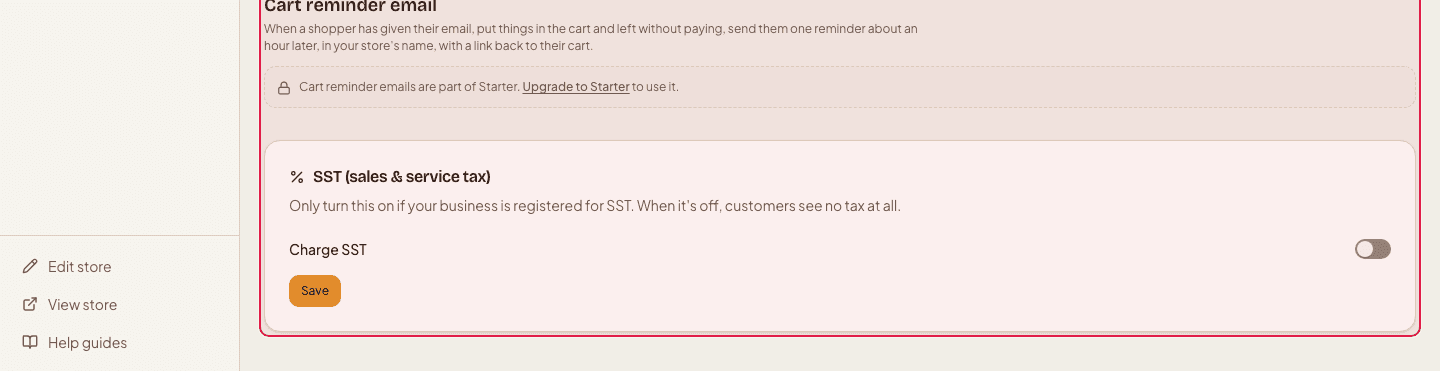
Click Settings, then Checkout, and find the “SST (sales & service tax)” card.
- 2
Turn on “Charge SST” and set the rate
Switch on Charge SST and type the rate that applies to you, for example 6 or 8 (check the current rate with the Royal Malaysian Customs Department).
- 3
Say how your prices are set
Choose “My prices already include SST” (customers pay exactly the price they see, and receipts show how much of it is SST) or “Add SST at checkout” (tax is added on top, so the total is higher).
- 4
Add your SST registration number
Type it in the SST registration number field if you want it on your receipts. Press Save.
- 5
Decide what your receipts show
Working from home? Go to Settings → General → Seller registration to keep your address and phone number off the receipts and invoices you give buyers, and show only your business name.

- 6
Print or save a receipt
Open an order and press Receipt. You can print it or save it as a PDF from your browser.

- 7
Issue an invoice
On the receipt page press Issue invoice. The order gets its own invoice number (INV-000001, INV-000002 … one running series for your store) and you can switch between the receipt and the invoice. If you charge SST, the invoice is a tax invoice showing the SST amount and your registration number.
Invoice numbers are given once and never reused, so issue an invoice only when you are ready to send it.
Still stuck?
Contact us and we'll help you sort it out.