Browse all guides
Buy more, pay less and combos: group prices and bundle sets
Set a group price like 3 for RM100, a price for a whole category, or sell products together as a combo — from Promotions or straight from a product's page.
Tokoo has two price-based offers that need no code. “Buy more, pay less” gives a group price when the cart holds enough of one product (or of a whole category): every full group gets the price, extra items stay at the normal price. A combo (Bundle set) sets one price for two or more different products bought together. Both work out in the cart on their own, and the cart tells shoppers how many more to add.
- 1
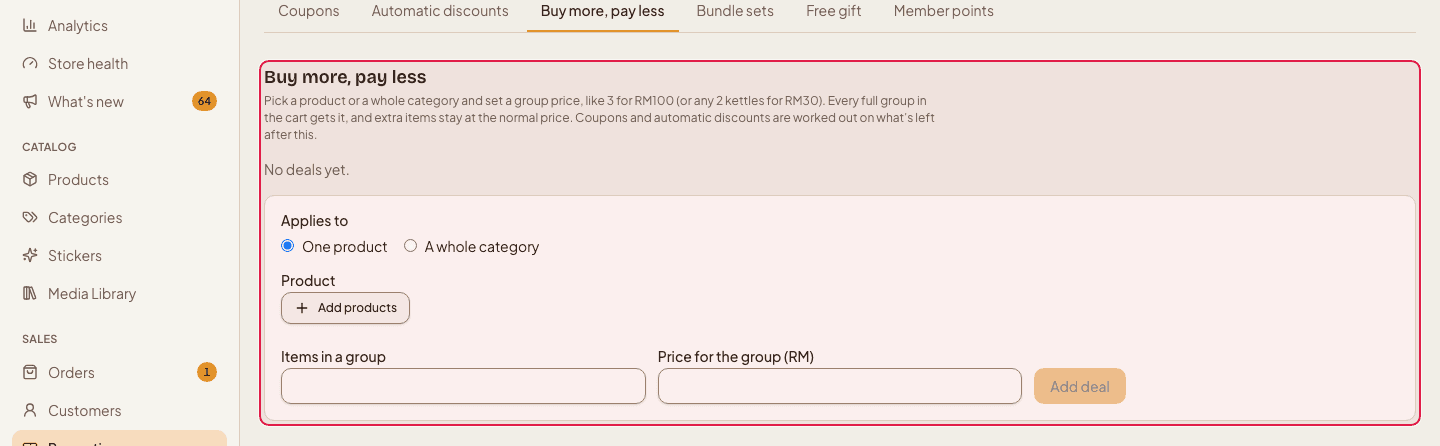
Open Promotions → Buy more, pay less
Click Promotions in the left menu, then the Buy more, pay less tab. Each kind of promotion has its own tab and its own page address, so you can bookmark it.
- 2
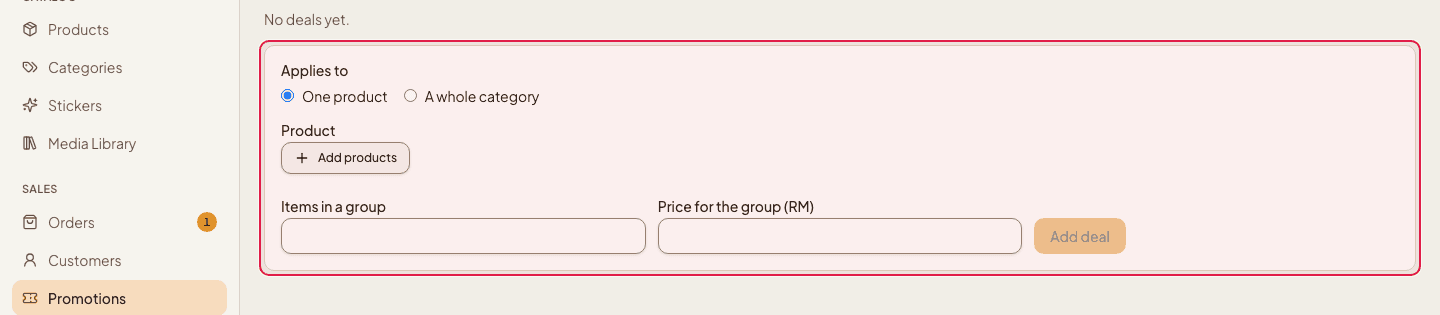
Choose what the deal applies to
Under “Applies to”, pick One product, or A whole category. Buy more, pay less is a Starter feature.
- 3
Pick the product (or the category)
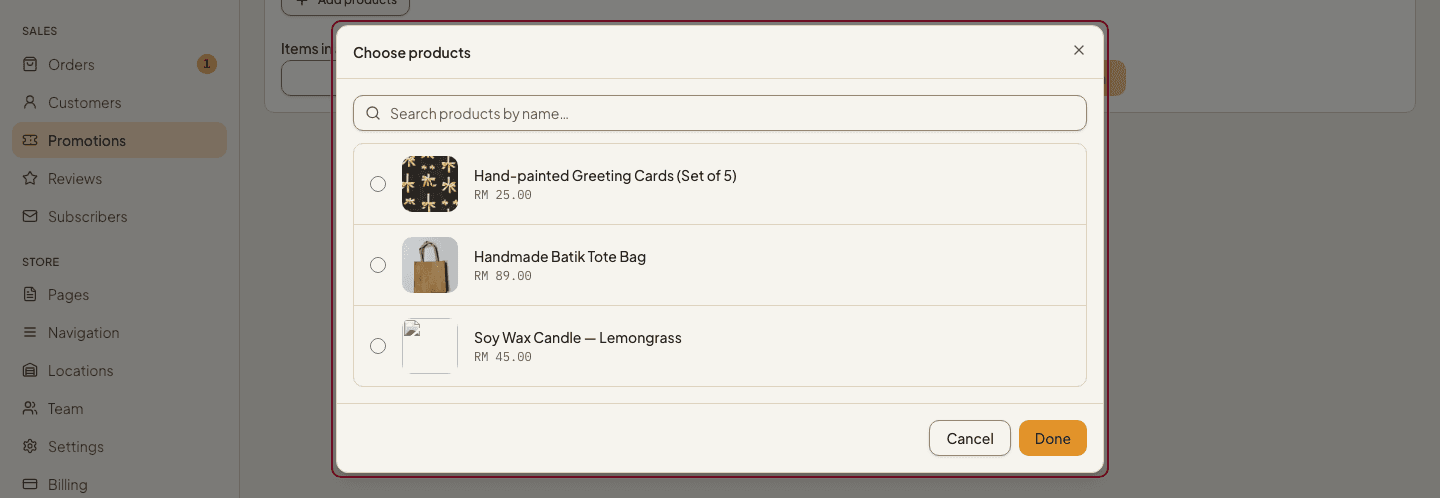
For one product, click Add products: a window opens with a search box, photos and prices. Tick the product and press Done. If it has options (size, colour), you can tick one option, several options or “Any option” — each ticked option gets its own deal at the same price. For a category, choose it from the list; products in its subcategories count too.
- 4
Set the group size and price
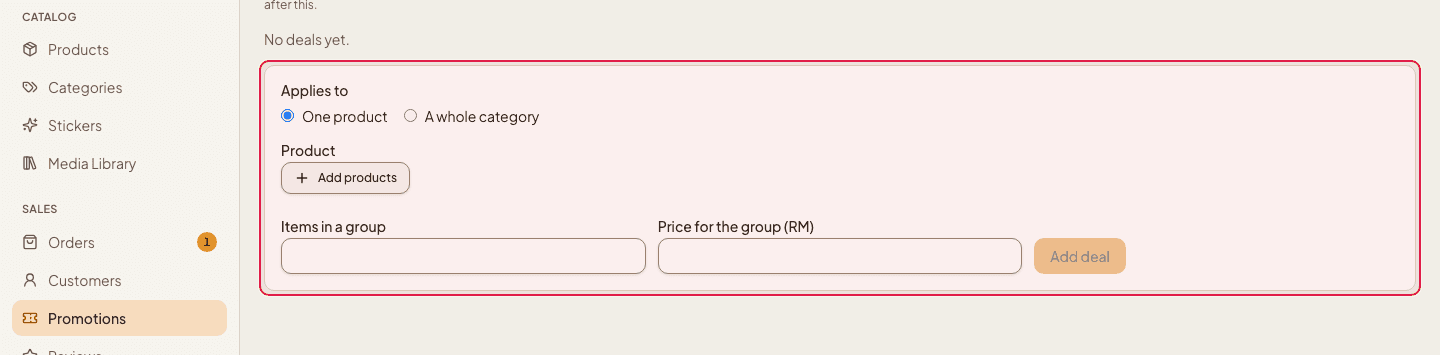
Enter Items in a group (for example 3) and the Price for the group in RM (for example 100). Press Add deal. The deal is on straight away; use the Turn off button on its row to pause it without deleting it.
How it adds up in the cart: with “3 for RM100” and 7 items in the cart, two groups get RM100 each and the last item is charged at its normal price. A product's own deal comes before a category deal. Coupons and automatic discounts are worked out on what is left after these offers.
Combos work the other way round: instead of many of one product, shoppers buy different products together.
- 1
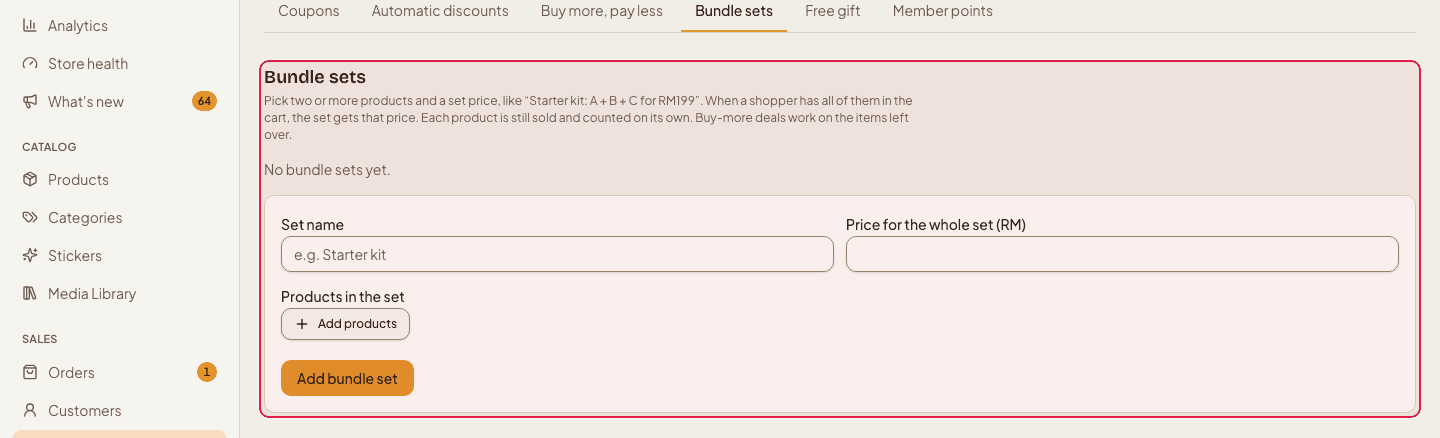
Open the Bundle sets tab
Go to Promotions → Bundle sets. The page lists your combos with their price, and a form to make a new one.
- 2
Add the products
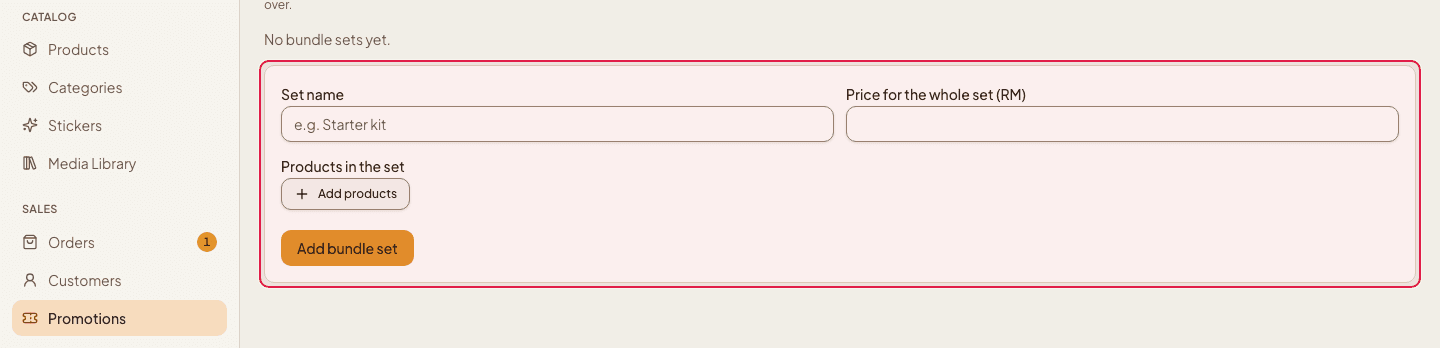
Click Add products and tick two or more products in the window. A product with options can be chosen by option, and the same product can appear twice with different options (for example the Red mug and the Blue mug).
- 3
Set the combo price
Type the Price for the whole set (RM). The name is made from the products for you. Press Add bundle set. Use Edit on the row to change the products or the price later, and Turn off to pause it.
You do not have to go to the Promotions page for this. Open any product, and its Buy together, Buy more, pay less and Free gifts tabs let you make the same offers for that product — they are the same records, just a shortcut from the product.
- 1
Open the product and use its offer tabs
Go to Products, open a product and look at the tabs across the top: Buy together (combos), Buy more, pay less and Free gifts. Each tab lists what already exists for this product and has a short form to add one. Every row has Edit, Turn off/on and Delete buttons.

What shoppers see
- On the product page
- An “Offers on this product” block next to the buy button lists the combos, group prices and free gifts that apply. It follows the option the shopper picks, so a deal for the Red option only shows when Red is selected. A combo has an Add the whole combo button that puts every item in the cart in one tap.
- In the cart
- A hint says what is still missing (“Add 1 more to get the set for RM120”), with a button to add the missing items. The saving shows as its own line.
- On the order
- Each discount is listed on the order, so you can see exactly what the customer paid and why.
Each product in a combo or deal is still sold and counted on its own: stock is deducted per product, and reports show the real products, not a made-up bundle item.
Still stuck?
Contact us and we'll help you sort it out.