Browse all guides
Send your products to Facebook, TikTok and Google
Turn on the product catalogue file and paste its address into each platform, so catalogue ads and Google’s free listings use your real products. Starter plan.
A catalogue is a list of your products — name, photo, price, in stock or not — that an ad platform keeps up to date by reading a file from your store. It is what lets a Facebook or TikTok ad show the exact product someone looked at, and what Google’s free product listings are made from.
In Malaysia, Instagram and Facebook don’t let you tag products in posts, and this file doesn’t change that. It is for catalogue ads and Google’s free listings.
- 1
Turn it on
Go to Promote and open the “Ads catalogue” tab. Click Turn on. You get one address per platform. Nothing is shared until you paste an address somewhere.
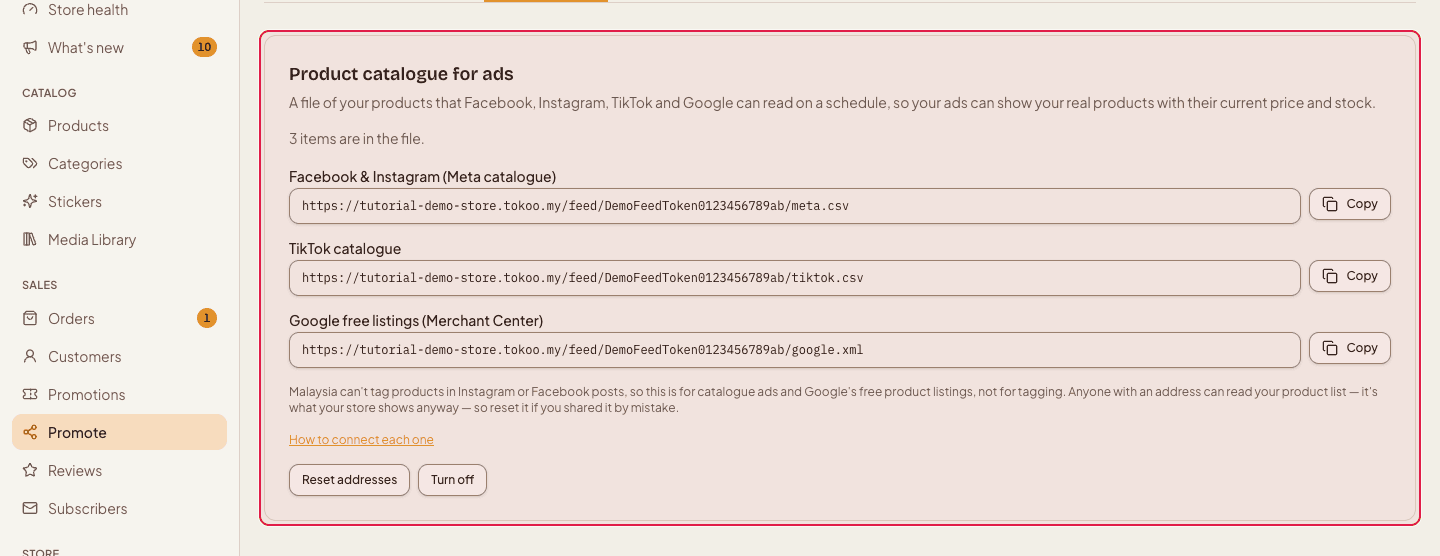
- 2
Facebook and Instagram
In Meta Commerce Manager create a catalogue (type: e-commerce), then add items from a data feed that Meta fetches on a schedule. Paste the Facebook & Instagram address and pick how often to fetch (daily is plenty; Meta’s minimum is hourly). Meta moves its menus around, so if a label differs, look for “Data feed” or “Scheduled feed”. Our file lists all your products, and Meta removes items that are missing from it.
- 3
TikTok
In TikTok Business Center go to Assets → Catalogs and add a catalogue. Then choose Add products → Data Feed Schedule, name the product source, paste the TikTok address, pick how often TikTok should fetch it (Hourly, Daily, Weekly or Monthly), choose the update method and click Import. If TikTok reports a field as missing, the file still works for the rest — tell us which one.
- 4
Google
In Google Merchant Center go to Settings → Data sources → Add product source, choose “Add products from a file”, then “Enter a link to your file” and paste the Google address. Google fetches it every 24 hours by default, and you can change it to daily, weekly or monthly. Free listings are in Marketing → Marketing methods; new accounts have them on by default, and Google also asks for your shipping settings.
Products without a photo are left out, because every platform requires one. Your Promote page tells you how many.
Anyone who has an address can read your product list. It’s only what your store already shows, but if you shared it by mistake, click Reset addresses and paste the new ones.
Still stuck?
Contact us and we'll help you sort it out.