Browse all guides
Show your TikTok, Instagram, YouTube and Facebook posts on your home page
Add the Social posts block, paste up to six post links, and visitors can tap a post to watch it without leaving your store. Starter plan.
A home page that shows your latest posts tells a new visitor your brand is alive. The Social posts block shows up to six posts as cards. A post only loads when a visitor taps it, so your page stays fast and nothing is shared with those platforms until then.
- 1
Add the block
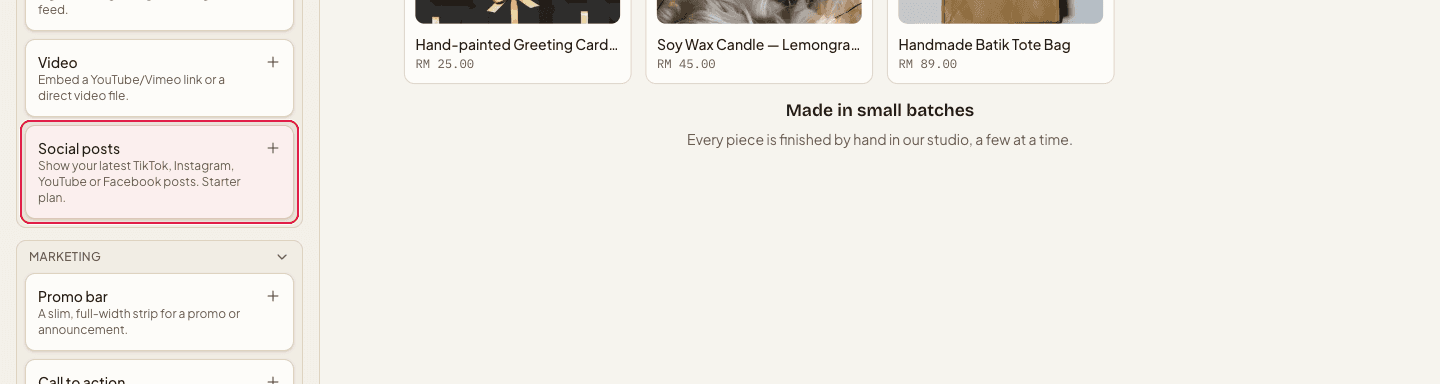
Press Edit store, then under Media in the block list press Social posts. It appears at the bottom of your home page; drag it where you want it.
- 2
Paste your post links
Open a post on TikTok, Instagram, YouTube or Facebook, copy its address from the browser bar, and paste it into the block’s settings. Add up to six. Use the full address of a single post or video, not a profile page. Short links such as vm.tiktok.com can’t be used: open the post and copy the full address.
- 3
See it on your home page
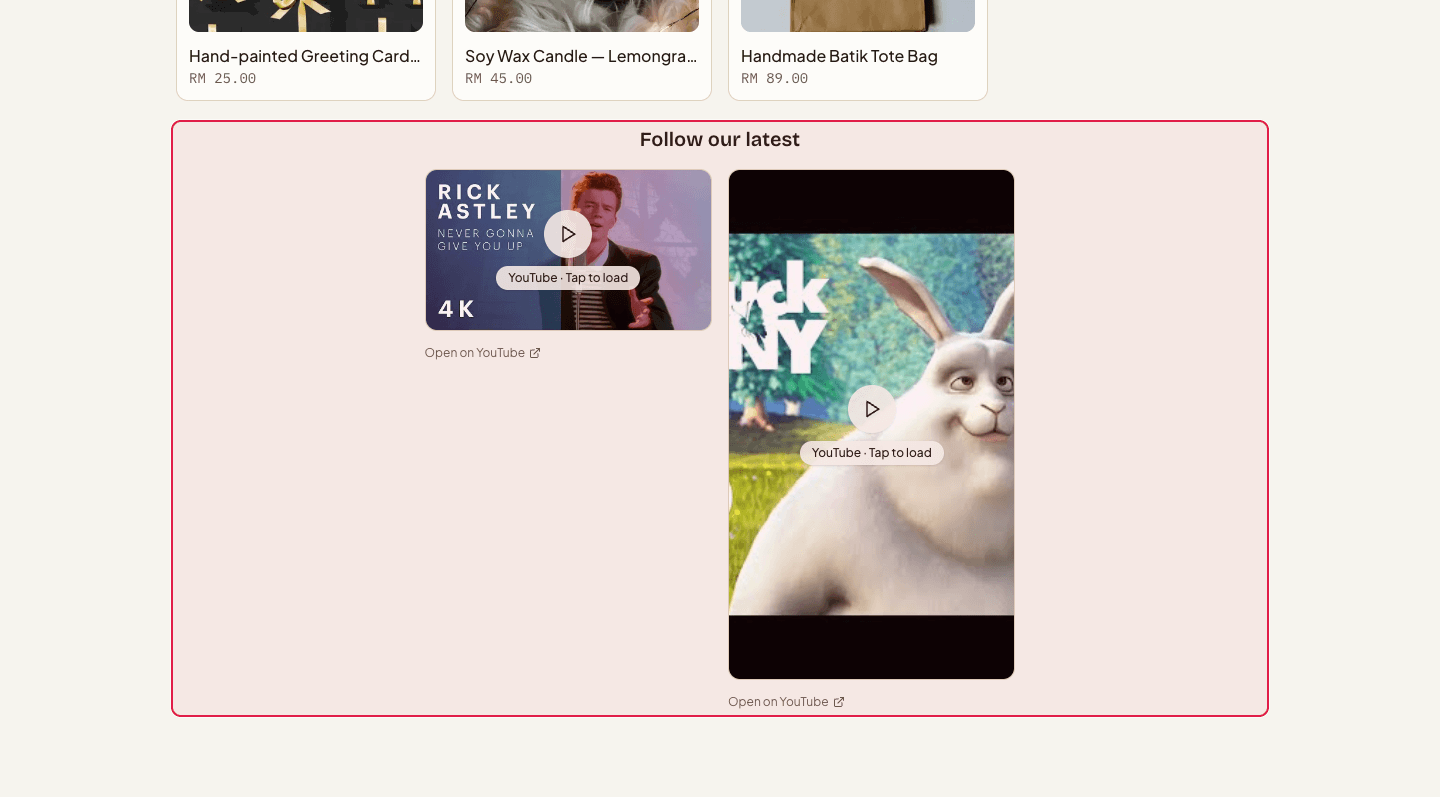
Each post is a card. A visitor taps it to play it, and there is always an “Open on” link under it for the original platform.
- 4
Publish
Press Publish in the editor’s top bar to put the block on your live store.
Add a heading such as “Follow our latest”. Put your best three posts first.
Social posts need the Starter plan. A store that drops back to Free keeps the block in its editor, but it stops showing on the store.
Still stuck?
Contact us and we'll help you sort it out.