Browse all guides
Read your results: which platform brings the orders
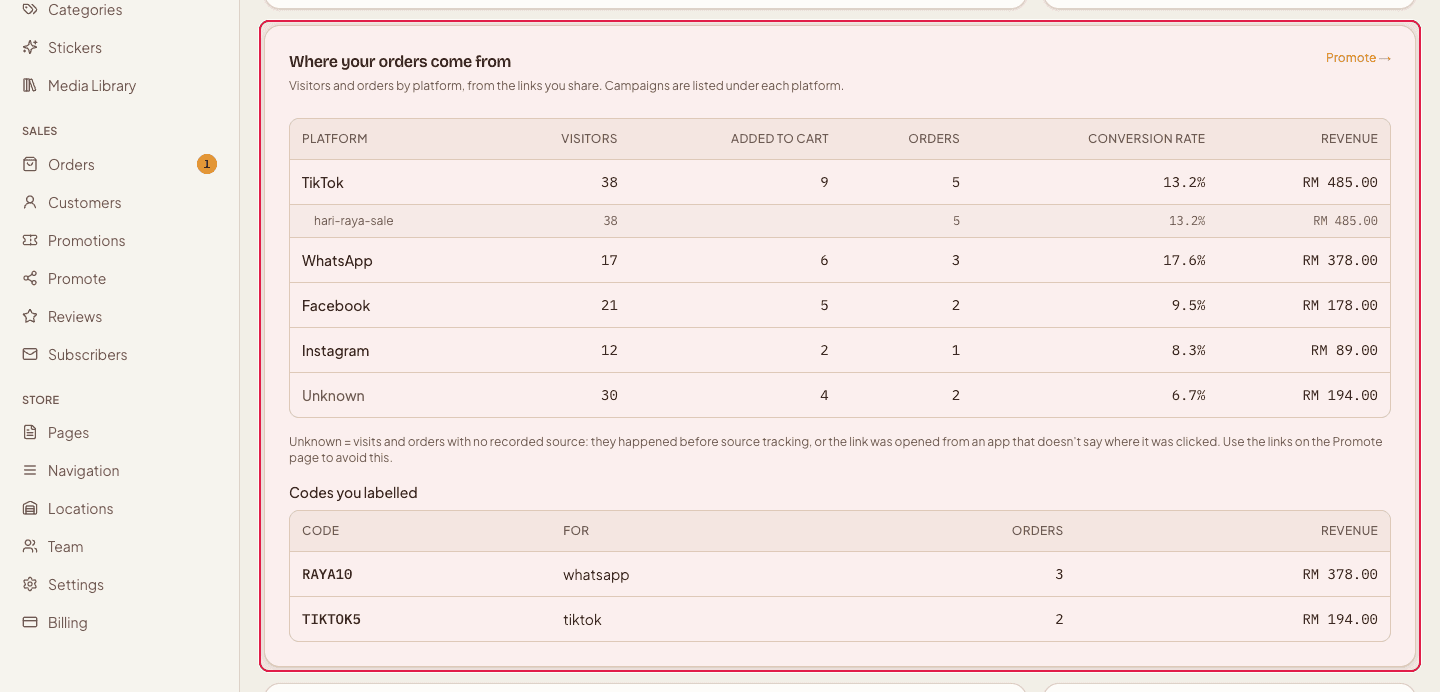
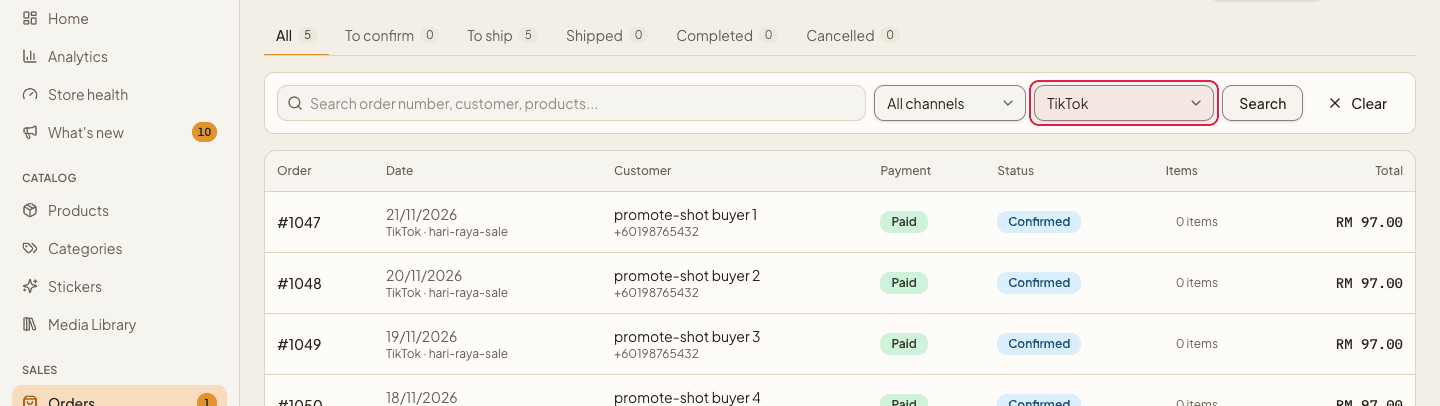
Where your orders come from, the campaigns under each platform, the codes you labelled, and the Orders list filtered by source.
Every link from Promote is tagged, so your store knows which platform each visitor and order came from. Two places show it: Analytics and the Orders list.
- 1
Open Analytics → Where your orders come from
Scroll to the card with that name. There is one row per platform: visitors, how many added to the cart, orders, the share of visitors who ordered, and sales. A campaign name you typed on Promote appears indented under its platform.
- 2
Filter your orders by source
On the Orders page, the source menu lists the platforms your orders actually came from. Pick one to see just those orders. Each order also shows its platform and campaign under the date, and the CSV export has Source and Campaign columns.
- 3
Read the Unknown row correctly
Unknown is visitors and orders with no recorded source: they happened before tracking existed, or the link was opened from an app that doesn’t say where it came from. It is not a mistake. The links on Promote avoid it.
- 4
Check the codes you labelled
Under the table, “Codes you labelled” lists each discount code you marked for a platform or a person, with the orders and sales it earned. It still counts when a link was forwarded in a private chat.
Give it a week or two before judging a platform. Do more of what brings orders, and stop spending time where visitors never order.
On the Free plan the card shows the last 7 days by platform, without sales. The full date range, campaigns, sales per platform and the source filter are part of the full promotion tools (Starter).
Still stuck?
Contact us and we'll help you sort it out.